Automation

Find Records by Complex Criteria, Distance & Time

Automatically find best-matching records by custom criteria and execute complex sequences of actions without writing code.

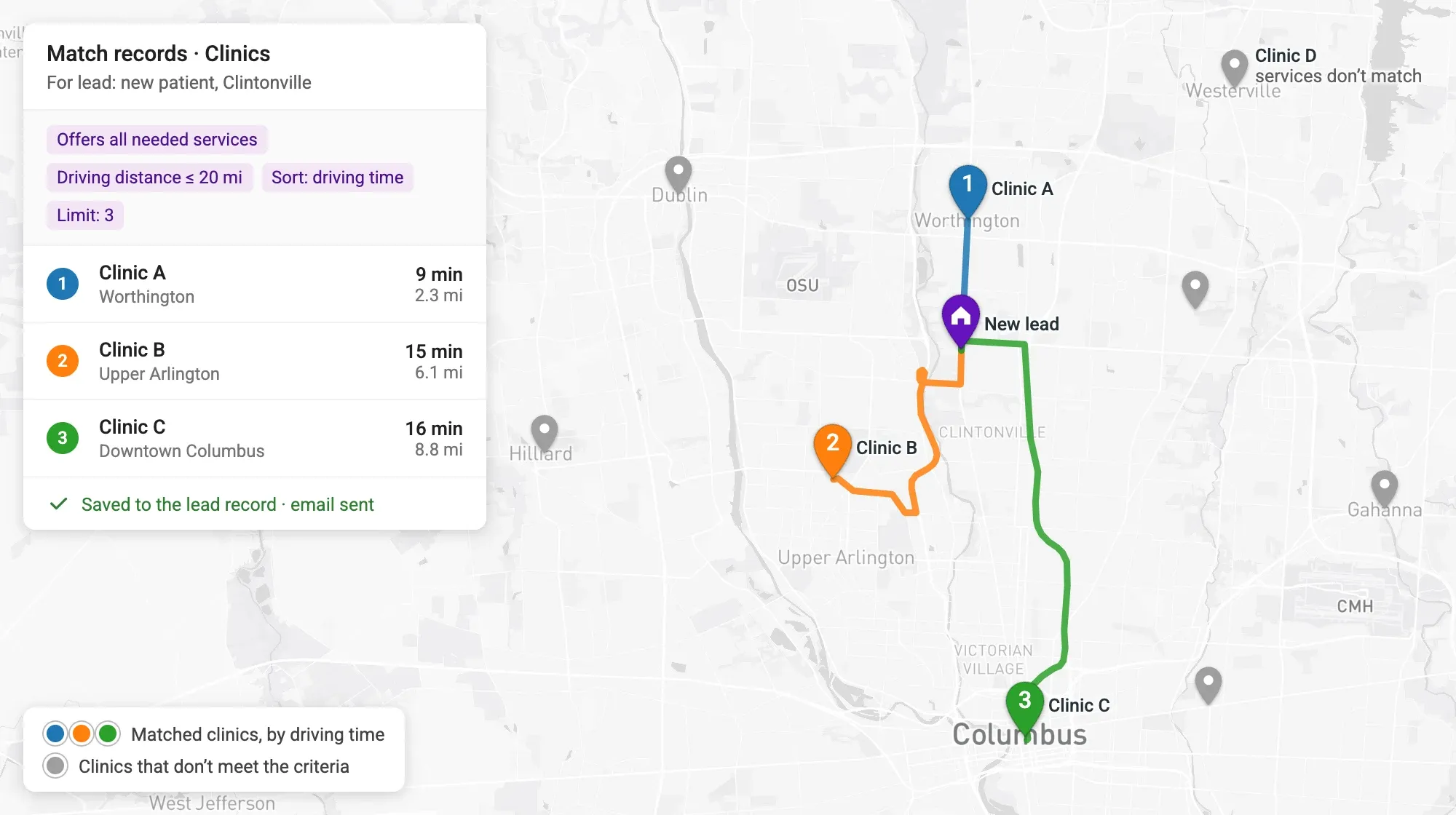
Map of Columbus, Ohio, showing a new lead and the three clinics matched for it, numbered by driving time, with driving routes from the lead; clinics that don’t meet the criteria are grey

How Record Matching Works

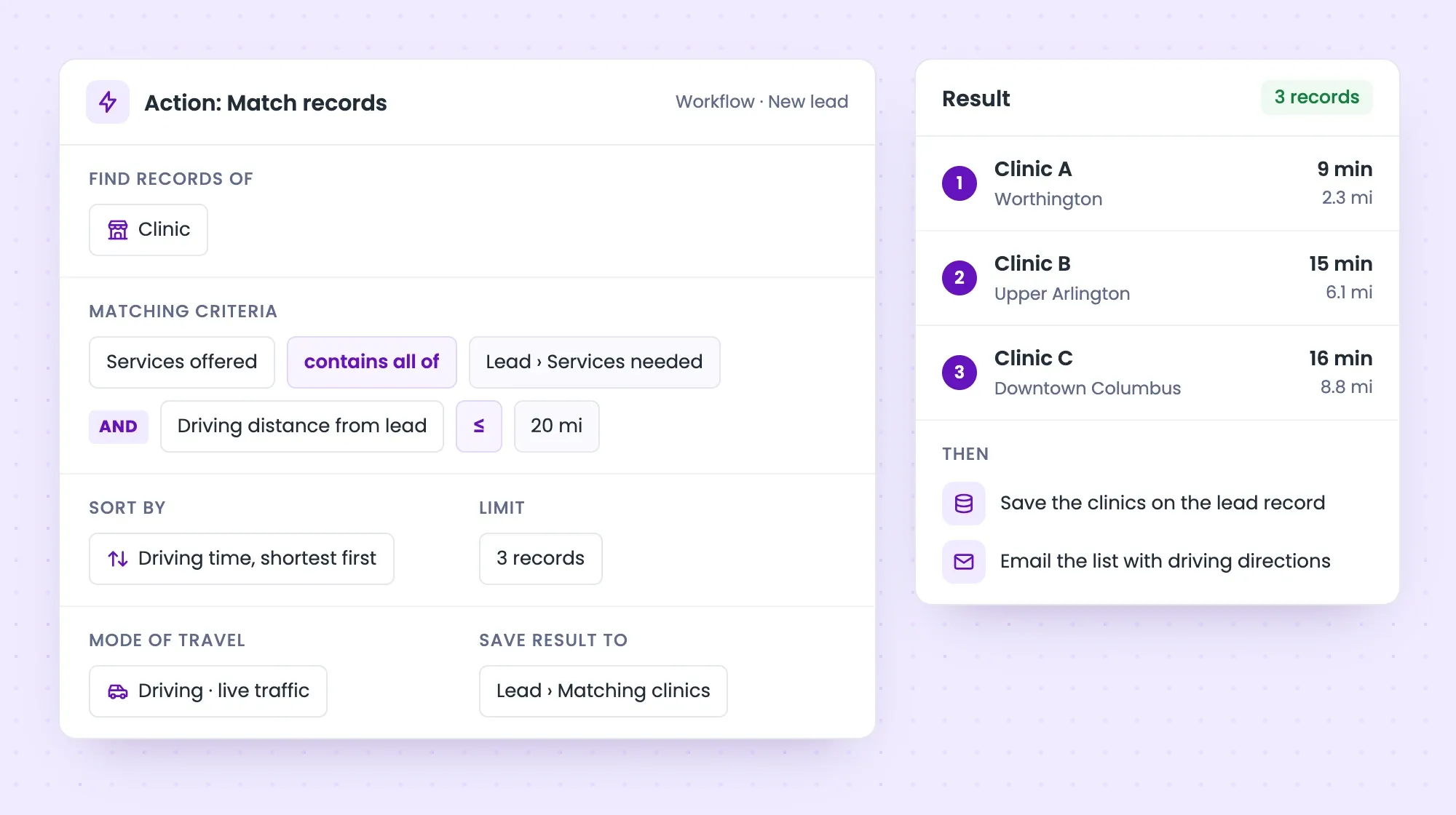
Using the Match records action of the Mapsly automation suite, you can implement complex and fully automated record-matching scenarios based on custom criteria that may include driving distance and time between locations. The matching criteria are easily configurable using Mapsly’s point-and-click expression builder and a set of control parameters.

The resulting record(s) can be saved to the base record—the CRM record for which we performed the search—or used in a more complex sequence of actions like creating or updating other records, sending email or SMS, or pushing them to an external API.

The distance and time between locations are calculated based on the mode of travel (driving, cycling, or walking), live and historical traffic, and, optionally, a full set of truck parameters.

Match records action settings: find Clinic records that offer all the services the lead needs within 20 miles of driving distance, sorted by driving time and limited to 3, with the result list and the follow-up actions

Applications

Below are 5 examples of lead follow-up processes that can be implemented with the help of a workflow triggered by a new lead and the Match records action. Such processes can also be initiated in response to a new or updated record of any other object, including a custom one, or manually by a button. When initiated by a button, a process may start with a form to gather additional data from the user that can then be used in any actions that follow.

Example 1: Patient Lead

For a patient (CRM lead):

  1. Find 3 clinics that offer all the services that a patient needs, closest to the patient by driving time but not further than 20 miles
  2. Save the list of clinics on the patient record
  3. Send the list to the patient’s email with the driving instructions

Example 2: Equipment Installation Lead

For an equipment installation lead:

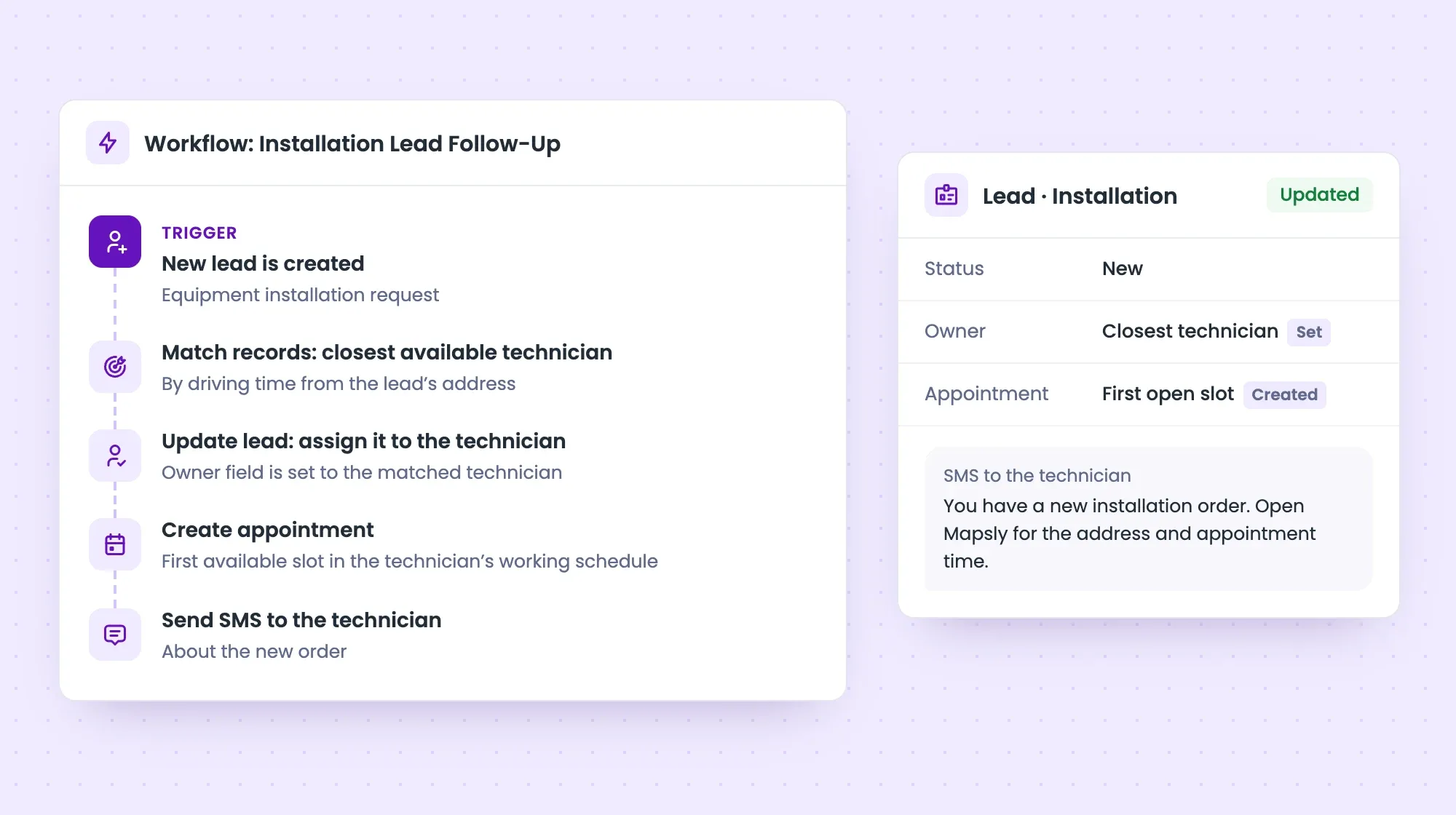
  1. Find the closest available technician
  2. Assign the lead to this technician
  3. Automatically create an appointment for the installation based on the first available slot in the technician’s working schedule
  4. Send the technician an SMS message about a new order
Workflow for a new installation lead: Match records finds the closest available technician, the lead is assigned to the technician, an appointment is created in the first open slot, and an SMS is sent to the technician

Example 3: Car Buyer Lead

For a new lead looking to buy a car:

  1. Find the closest dealership based on the lead’s brand and model preference
  2. Save the found dealership on the lead record
  3. Send an email to the dealership with the contact of the lead so they can invite the lead to visit the dealership
  4. Create a task for the dealership supervisor to follow up with the lead

Example 4: Industrial Garbage Disposal Lead

For a new lead interested in regular industrial garbage disposal:

  1. Find all disposal sites within a 50-mile radius that match the set of the lead’s garbage parameters
  2. For each of the found sites, calculate the quote for disposal based on the driving distance and cost per mile offered by the site’s company
  3. Pick the site with the lowest quote
  4. Call the CRM’s API to generate a quote and send it to the lead’s email
  5. Send the lead’s information to the chosen site’s company
  6. Create a task for the manager to follow up with the lead and the chosen site

Example 5: New Real Estate Property

For a new real estate property record (lead, contact, or deal):

  1. Create a HubSpot contact list with the customers interested in this type of property, located within a 20-mile radius of the property, and who don’t yet own properties within a 50-mile radius from the new property
  2. Save a summary report with the total contacts found on the lead’s Summary field
  3. Send an email to the agency manager with the name of the new contact list and the names of contacts in it
  4. Create a task for the manager to send out an outbound email campaign to this list of contacts

Customer story

How Fox Factory Standardized Sales Visits, Cut Territory Planning Time by 80%, and Doubled Field Data Collection with Mapsly

By adopting Mapsly’s forms, automation, and territory management tools, Fox Factory transformed their outside sales operations—saving 96 hours in planning, standardizing field processes, and capturing 100% more actionable sales data, all while gaining full visibility into daily team activities.

Read the story

Ready to Get Started?

Start a free 14-day trial of the full platform, or let a solution engineer build a proof of concept for your team.

No credit card required · Chat with sales